

localhost, not the server’s public name, and a database elsewhere on the private network is whatever the SSH server calls it (an RDS endpoint, for instance).
Set up a tunnel
1
Turn the tunnel on
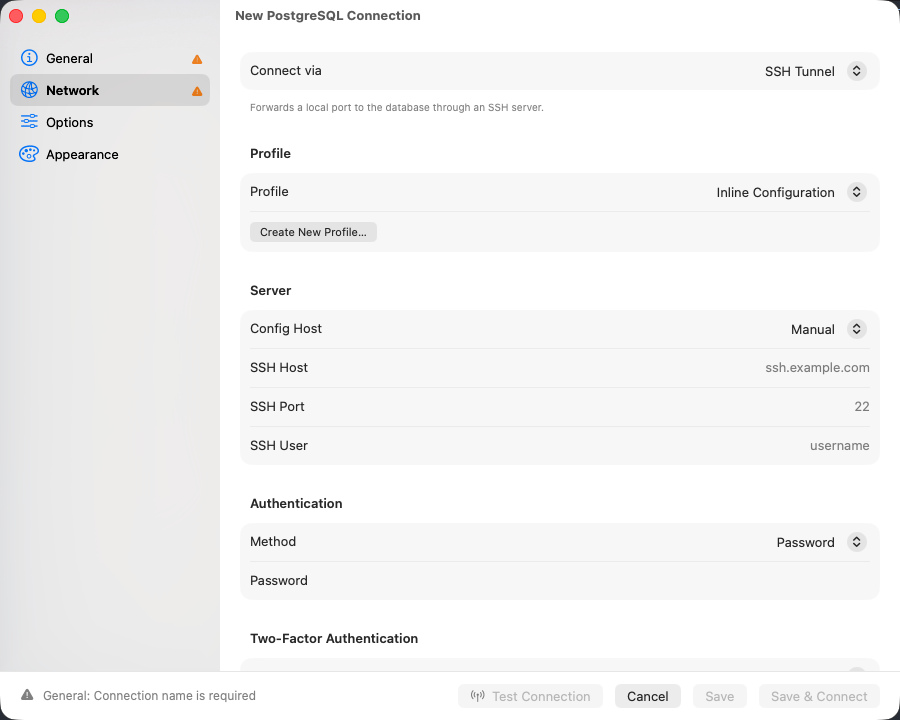
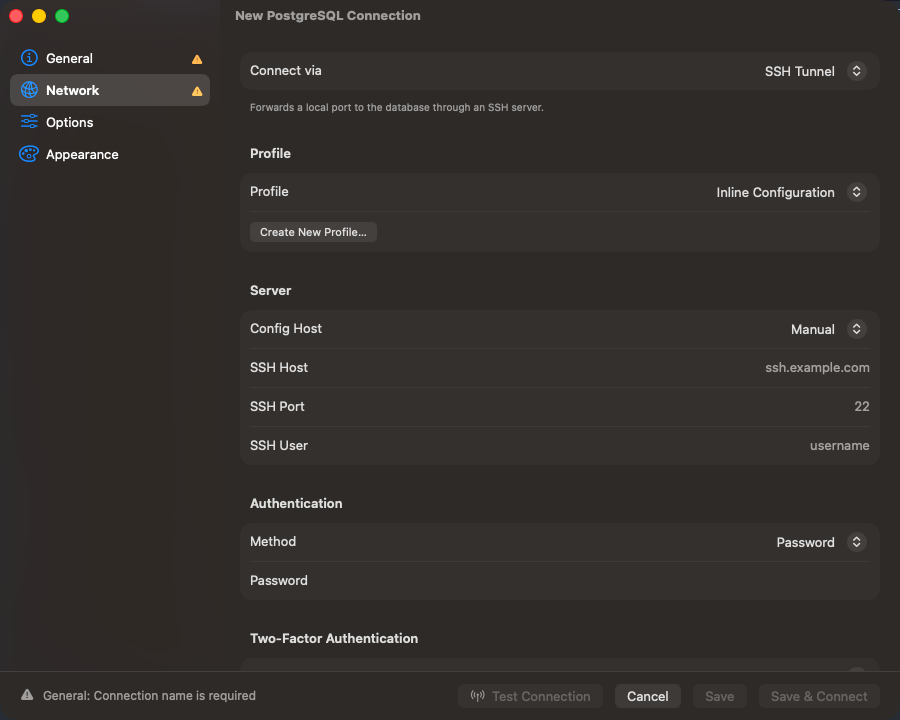
In the connection form, open the Network tab and set Connect via to SSH Tunnel. A connection uses one transport, so choosing this one switches off whichever was selected before.
2
Name the SSH server
Fill in SSH Host, SSH Port (22 by default), and SSH User. With
~/.ssh/config entries present, a Config Host picker appears above the host field instead.3
Pick an authentication method
Password, Private Key, SSH Agent, Keyboard Interactive, or None. Authentication methods has the fields for each.
4
Set the database Host from the server's point of view
Back on General,
localhost reaches a database on the SSH server itself. One on a unix socket needs Socket Path instead.5
Click Test Connection
A wrong host, a blocked forward, or an agent nothing answered on names the real reason instead of timing out. Troubleshooting has the messages the SSH side reports.
scheme+ssh:// URL into the Import from URL… sheet.
Reusing a saved SSH profile
Authentication methods
Private Key is the one to pick unless the server only ever issued you a password.
Verification codes and two-factor authentication
A keyboard-interactive challenge partway through authentication, fromgoogle-authenticator or duo_unix for example, is shown as the server worded it and your answer sent back. Every method except None supports this, a key or agent followed by a second factor included (AuthenticationMethods publickey,keyboard-interactive).
The Two-Factor Authentication section can answer TOTP codes instead. None and Prompt at Connect both ask when the server does; Auto Generate computes the code from the base32 TOTP Secret off your authenticator enrollment, with Algorithm (SHA1, SHA256, SHA512), Digits (6 or 8), and Period (30s or 60s) already set to what most servers use.
Host keys
A first connection shows the server’s key type and SHA-256 fingerprint, inssh-keygen -l format, and waits for Trust. Trusted keys go to ~/Library/Application Support/TablePro/known_hosts.
If a trusted server’s key later changes, an SSH Host Key Changed alert lists the previous and current fingerprints. Connect Anyway does not answer the Return key. Escape picks Disconnect, which is what to take unless you know the server was reinstalled. With jump hosts, every hop’s key is verified the same way.
Using ~/.ssh/config
Pick an alias from the Config Host picker andHostName, User, Port, IdentityFile, IdentitiesOnly, IdentityAgent, and ProxyJump are resolved from the config at connect time. Anything typed into the form overrides the file, which is re-read whenever it or an Included file changes.
IdentityFile picks which agent key is offered, not only which key file is read, and a .pub is enough. That is how a 1Password or Secretive key gets pinned to a host. IdentitiesOnly yes then drops every agent key the config did not name, which is what keeps a thirty-key agent inside a server’s MaxAuthTries.
Picking a host from ~/.ssh/config
Tokens
Each keyword takes the tokensssh_config(5) gives it, and no others. Hostname %h is the common one: it names the host the connection already asked for, which is what makes a catch-all Host *.* block work.
%h is the host after any HostName substitution and %n the one the connection named; %p, %r and %j are the port, remote user and jump host in effect; %d and %u are your home directory and username; %C hashes %l%h%p%r%j, the way ControlPath does. ${VAR} reads an environment variable in the same places, and a leading ~ or ~user expands in any keyword naming a file.
A token a keyword does not take stops the connection and names both, rather than reaching the server as literal text. Include is the one narrowing: the file is read once for every connection, before any host is known, so a token naming the target is skipped with a note in Console.
Jump hosts
For a database behind more than one bastion, expand Jump Hosts and add each hop in order. Each hop is an SSH session tunneled through the previous one, with nossh subprocess involved.
With the list left empty and an SSH host that matches a config entry carrying
ProxyJump, that directive is followed instead.
Forwarding to a unix socket
Some servers listen on a unix socket with no TCP port open at all, a PostgreSQL box set up forlocal connections in pg_hba.conf being the usual case. Fill in Socket Path under SSH Tunnel and the forward targets that socket, the same thing ssh -L 5434:/var/run/postgresql/.s.PGSQL.5432 server does by hand. Host and Port are ignored while a socket path is set. Jump hosts still apply: the hops reach the SSH server, and the socket opens from there.
Point at the socket file, not the directory holding it:
peer authentication works: the SSH server opens the socket as your SSH login user, so a local all all peer line authenticates you as the PostgreSQL role of that name.
A database on a socket cannot negotiate TLS, so SSL is switched off for the connection. The SSH tunnel still encrypts the whole path.
If the tunnel drops
A keep-alive goes out every 30 seconds. When one fails the session drops to connecting and the tunnel is rebuilt, retrying at 2s, 4s, 8s and doubling to a 120-second ceiling, ten attempts at most. A query in flight dies with the tunnel and is not replayed. After ten failures the session ends with SSH tunnel disconnected. Click to reconnect. If tunnels keep dropping on an idle network, the keep-alive is not the missing piece: check the server’sClientAliveInterval and the idle timeouts on any firewall or load balancer in between.
What the tunnel is carrying
The rate sits beside the connection name in the middle of the toolbar. For the totals, pressCtrl+Cmd+C and read the footer under the connection list: bytes received and sent since the tunnel opened. A rebuilt tunnel starts again from zero. See transport activity.
Troubleshooting
”The SSH server could not reach …”
SSH is fine and the forward is not. Almost always the Host field: that address is resolved from the SSH server, so a database bound to127.0.0.1 (the MySQL and PostgreSQL default) needs Host set to localhost. Check what it is bound to with ss -lntp on the server. If the host is right, check sshd_config for AllowTcpForwarding yes.
”The SSH server did not open a forwarding channel to …”
The destination took the connection and never answered, which usually means a firewall or security group dropping packets rather than refusing them. Test it from the SSH server:ssh user@server "nc -zv db-host 3306".
”The SSH server would not forward the socket …”
The socket path does not exist on the server, orsshd_config sets AllowStreamLocalForwarding no. That is a separate setting from AllowTcpForwarding.
”No SSH agent answered on the socket from …”
Nothing is listening where that socket points, and the message names which of the three set it: Agent Socket under SSH Tunnel, anIdentityAgent line for the host in ~/.ssh/config, or SSH_AUTH_SOCK. Change it in the place the message names.
SSH_AUTH_SOCK is the one that catches people out. An app launched from Finder gets it from launchd, which means the ssh-agent macOS runs, whatever a shell profile exports. 1Password and Secretive are reached by naming their own socket: switch Agent Socket to 1Password, or to Custom Path.
A jump host has no Agent Socket field of its own, so its agent comes from IdentityAgent or SSH_AUTH_SOCK.
”The SSH agent from … holds no keys.”
The agent answered and offered nothing. 1Password serves keys only while it is running and unlocked, and Secretive only while its agent is loaded; unlock it and add the key there.ssh-add loads keys into the SSH_AUTH_SOCK agent alone, so it is the fix only when that is the socket in the message.
”The SSH agent from … holds no key matching the identity file set for this host. …”
The agent has keys, and none of them is the oneIdentityFile or Identity File names. List what that agent holds with SSH_AUTH_SOCK=<the socket the message names> ssh-add -L, since a bare ssh-add reads the shell’s SSH_AUTH_SOCK rather than the socket TablePro used. Point the setting at a key in that list, or clear it to go back to offering every key.
”No public key could be read from the identity file set for this host, …”
IdentityFile or Identity File names a path, and neither it, its .pub sidecar, nor its -cert.pub parses as an OpenSSH public key. Check the path, and run ssh-keygen -l -f <path> to confirm the file itself. ssh-keygen -y -f <private key> > <private key>.pub writes the sidecar when only the private key exists.
”SSH agent did not authenticate. …”
The agent offered keys and the server accepted none of them. Check the public key is in~/.ssh/authorized_keys on the server for the SSH User you filled in, and that the key you expect is in the agent rather than only on disk.
”The SSH server closed the connection while the agent’s keys were being offered. …”
The server reachedMaxAuthTries, 6 by default, before a key it accepts came up. Count that agent’s keys with SSH_AUTH_SOCK=<the socket in **Agent Socket**> ssh-add -L: past six, the right one may never be offered. Name it with IdentityFile and IdentitiesOnly yes for the host in ~/.ssh/config, or fill in Identity File on the connection.
The tunnel connects and the database refuses the login
The database credentials are separate from the SSH ones. Check you did not carry one set into the other.A firewall prompt on connect
The local end of the tunnel listens on a port between 60000 and 65000. Allow it.SSH fails instantly against a server on your own network
macOS 15 and later put outbound connections to local network addresses behind a Local Network permission, and a denied app fails fast with “no route to host”. Check TablePro under System Settings > Privacy & Security > Local Network. Servers over the internet, and anything on127.0.0.1, are unaffected.
SSH itself fails
Try the same host, user, and key in Terminal withssh -v user@server. If that fails too, the problem is server-side.